11: System upgrade
In the last email (subject: Dim and dimmer), I shared how I became interested in work design (even though I didn’t have a name for it back then).
After testing numerous productivity tools, including a failed experiment with Evernote, I had pretty much given up on finding a ‘work satnav’ - a dashboard guiding me through my daily tasks.
But then I stumbled upon Notion.
Now, before we get into this, I’d like to clarify a few things:
I don’t work for Notion.
I’m not affiliated with Notion.
I don’t get paid by Notion.
And Notion has many limitations. So, rest assured, this email series isn’t about to turn into a Notion sales pitch.
But what I’ve learned through using Notion has been instrumental in helping me see:
why L&D struggles to consistently improve employee performance, and
how L&D professionals can thrive as AI disrupts how people work.
To explain how I got here, let’s go back to 2020…
After seeing Notion on YouTube, I took a few days off to experiment. And what I discovered was that Notion wasn’t just better than tools I’d tried before - it was different.
Why?
Because most tools have a clearly defined use. Whereas Notion is ambiguous. Is it for knowledge management? Is it a productivity tool? Is it a wiki? For many, this friction is enough to deter them.
But I studied some Notion gurus, and it was their application of systems thinking that astounded me.
They’d achieved the holy grail - a satnav for work.
Now, without turning this into a Notion tutorial, I need to explain the basic architecture - because it’s integral to understanding the significance of this discovery and the implications for both L&D and the organisations we serve.
And what’s key is understanding the difference between how Notion stores and surfaces information - compared to the tools with which we’re more familiar e.g., Documents, Google Drive, OneNote, Evernote etc.
Whether it’s a file, note or task, most tools and apps organise information according to where it’s stored. So, we typically find what we need by navigating through the folder structure, or by searching for it.
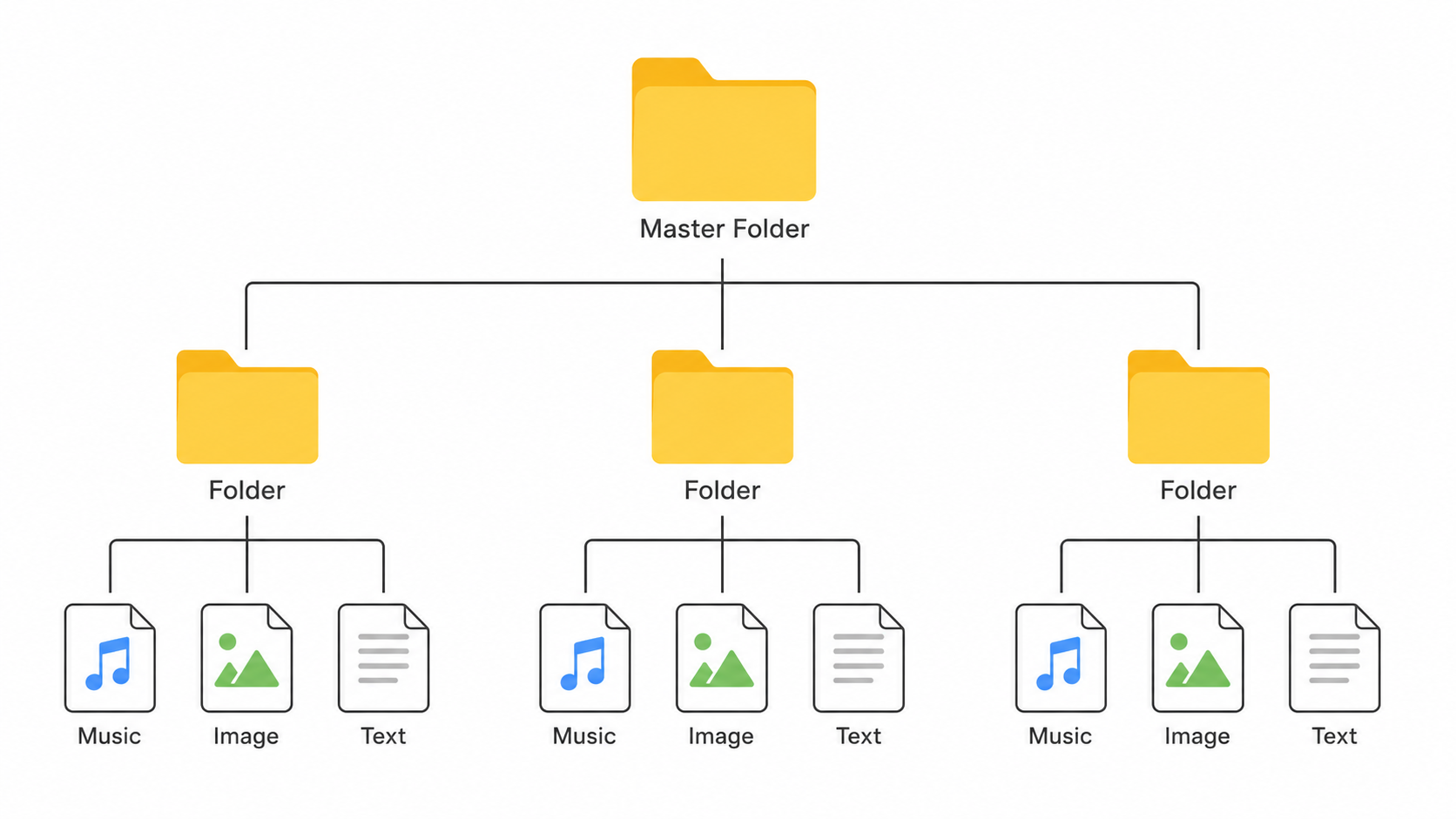
Now, one caveat is that some tools offer additional properties, so information can be accessed in different ways - just like in the last email when I described Evernote. In that example, I created tags like high priority and office, so I could see the tasks grouped by those tags.
We also see examples of extra properties in photo and music apps. In Google Photos, you can view photos by date, location or person. In Spotify, you can filter songs by artist, album or genre. By using the files’ properties, photos and songs surface in different, helpful ways.
However, all these examples suffer one important limitation - the properties are mostly defined by the tools.
But in Notion, you can create your own properties - and you can have as many as you want.
So, within my task database, I added the following properties:
Do Date
Completed?
Status
Priority
Project
The Do Date is the date I want to undertake the task (different to Due Date). The Completed property is a checkbox.
Not only do you have complete control over the properties, you can also add pre-defined values within each property. This gave me a quick way to assign values to each new task:
Status: Active, Waiting, Someday
Priority: 1-High, 2-Medium, 3-Low
Project: Redesign website, Write book, Book holiday
Providing the user with this level of control has huge ramifications - it meant I could create different views based on the values assigned to each task.
So, for example, some useful views are:
all today’s incomplete tasks sorted by priority
all tasks filtered by project
any overdue tasks assigned to Debbie
all tasks awaiting approval
all tasks linked to a specific client
These views present the exact same data, but filtered by context (if you’re familiar with Excel pivot tables, you’ll understand how this works). The underlying task database doesn’t change. But depending on the view, I could see only the info relevant to a particular moment, project, person or status.
Finally, I had what I’d always wanted - a satnav for work!
And it was around this time I started realising the potential in an organisational context - even without Notion, could something like this help my colleagues too?
But what I discovered next floored me.
Yours,
- Ant